
Effortless Data Migration with Samsung Smart Switch: Simplifying Your Device Upgrade
The Convenience of Samsung Smart Switch: Seamlessly Transfer Your Data
When it comes to upgrading to a new Samsung device, the last thing you want is the hassle of transferring all your data manually. This is where Samsung Smart Switch comes to the rescue, offering a convenient and efficient solution for transferring your data from your old device to your new Samsung smartphone or tablet.
Whether you’re switching from an Android device, iPhone, or even a Windows Phone, Samsung Smart Switch simplifies the process, ensuring that all your important data – including contacts, messages, photos, videos, apps, and more – are seamlessly transferred to your new Samsung device.
One of the key advantages of Samsung Smart Switch is its versatility. You can choose to transfer your data wirelessly using Wi-Fi Direct or via a USB cable connection. This flexibility allows you to transfer your data in a way that best suits your preferences and needs.
Furthermore, Samsung Smart Switch ensures that your data is transferred securely and efficiently. The app employs advanced encryption methods to protect your information during the transfer process, giving you peace of mind knowing that your personal data is safe and secure.
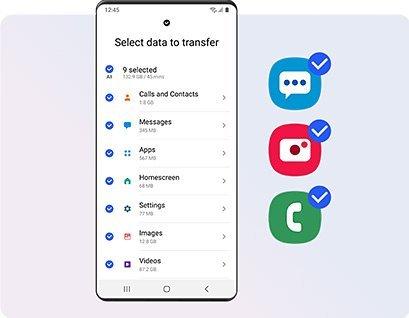
Setting up Samsung Smart Switch is straightforward and user-friendly. Simply download the app from the Google Play Store or Apple App Store on both your old and new devices. Follow the on-screen instructions to establish a connection between the two devices and select the data you wish to transfer. With just a few taps, you can migrate all your important information to your new Samsung device in no time.
Whether you’re upgrading to the latest Galaxy smartphone or simply switching to a new Samsung tablet, Samsung Smart Switch streamlines the data transfer process, allowing you to enjoy your new device without any unnecessary delays or complications. Say goodbye to manual data transfers and embrace the convenience of Samsung Smart Switch for a seamless transition to your new Samsung device.
8 Essential Tips for Seamless Data Transfer with Samsung Smart Switch
- Ensure both the old and new devices have Samsung Smart Switch app installed.
- Connect the devices using a USB OTG cable or wirelessly for data transfer.
- Follow the on-screen instructions to select what data you want to transfer.
- Make sure both devices are sufficiently charged before starting the transfer process.
- Backup important data before initiating the transfer to prevent any loss of information.
- Keep both devices close to each other during the transfer for a stable connection.
- Check for any software updates on both devices to ensure smooth compatibility with Smart Switch.
- Once the transfer is complete, verify that all selected data has been successfully transferred.
Ensure both the old and new devices have Samsung Smart Switch app installed.
To ensure a smooth and successful data transfer using Samsung Smart Switch, it is essential to have the app installed on both your old and new devices. By having Samsung Smart Switch installed on both devices, you can establish a secure connection between them and initiate the transfer process seamlessly. This step is crucial in ensuring that all your important data, including contacts, messages, photos, and apps, are transferred accurately to your new Samsung device without any interruptions or compatibility issues.
Connect the devices using a USB OTG cable or wirelessly for data transfer.
To effortlessly transfer your data using Samsung Smart Switch, you have the option to connect your devices either using a USB OTG cable or wirelessly. This flexibility allows you to choose the method that best suits your needs and preferences. Whether you prefer the convenience of a wireless transfer or the reliability of a cable connection, Samsung Smart Switch ensures a seamless and efficient data transfer process between your old and new devices.
Follow the on-screen instructions to select what data you want to transfer.
To make the data transfer process smooth and tailored to your preferences, it is essential to follow the on-screen instructions provided by Samsung Smart Switch. By carefully selecting the specific data you want to transfer, such as contacts, messages, photos, and apps, you can ensure that only the information that matters most to you is migrated to your new Samsung device. This step-by-step guidance ensures a personalised and efficient transfer experience, allowing you to customise your data migration according to your needs.
Make sure both devices are sufficiently charged before starting the transfer process.
Before initiating the data transfer process using Samsung Smart Switch, it is crucial to ensure that both your old and new devices are adequately charged. Having sufficient battery power on both devices is essential to prevent any interruptions during the transfer process and to ensure a smooth and successful data migration. By making sure that your devices are sufficiently charged beforehand, you can avoid any potential issues and complete the transfer with ease, allowing you to enjoy your new Samsung device with all your data seamlessly transferred.
Backup important data before initiating the transfer to prevent any loss of information.
It is crucial to heed the advice of backing up essential data before commencing the transfer process using Samsung Smart Switch. This precautionary measure is essential in safeguarding your valuable information and ensuring that no data is lost during the transfer. By taking the time to create a backup of your important data, you can enjoy peace of mind knowing that your files are securely stored and can be easily recovered if needed. Remember, prevention is key when it comes to protecting your data integrity, so make sure to back up before initiating any transfers with Samsung Smart Switch.
Keep both devices close to each other during the transfer for a stable connection.
For a smooth and uninterrupted data transfer using Samsung Smart Switch, it is advisable to keep both your old and new devices in close proximity to each other throughout the process. By maintaining a stable connection between the two devices, you can ensure that the transfer of your data occurs seamlessly and efficiently. This simple tip can help prevent any interruptions or delays during the transfer, allowing you to swiftly migrate all your important information to your new Samsung device with ease.
Check for any software updates on both devices to ensure smooth compatibility with Smart Switch.
To ensure a smooth and seamless data transfer experience using Samsung Smart Switch, it is essential to check for any software updates on both your old and new devices. Keeping your devices up to date with the latest software versions will help ensure compatibility with Smart Switch and minimise the risk of any potential issues during the data transfer process. By verifying that both devices are running the most recent software updates, you can optimise the performance of Samsung Smart Switch and facilitate a hassle-free transition to your new Samsung device.
Once the transfer is complete, verify that all selected data has been successfully transferred.
After completing the data transfer process using Samsung Smart Switch, it is essential to verify that all the selected data has been successfully transferred to your new Samsung device. Taking a few moments to double-check ensures that no important information has been left behind during the transfer. By confirming that all your contacts, messages, photos, videos, and apps have been successfully migrated, you can start using your new device with confidence, knowing that everything you need is readily accessible.