
Microsoft Project Online: Features, Retirement and Migration Guide
Microsoft Project Online: Features, Benefits and What Happens Next
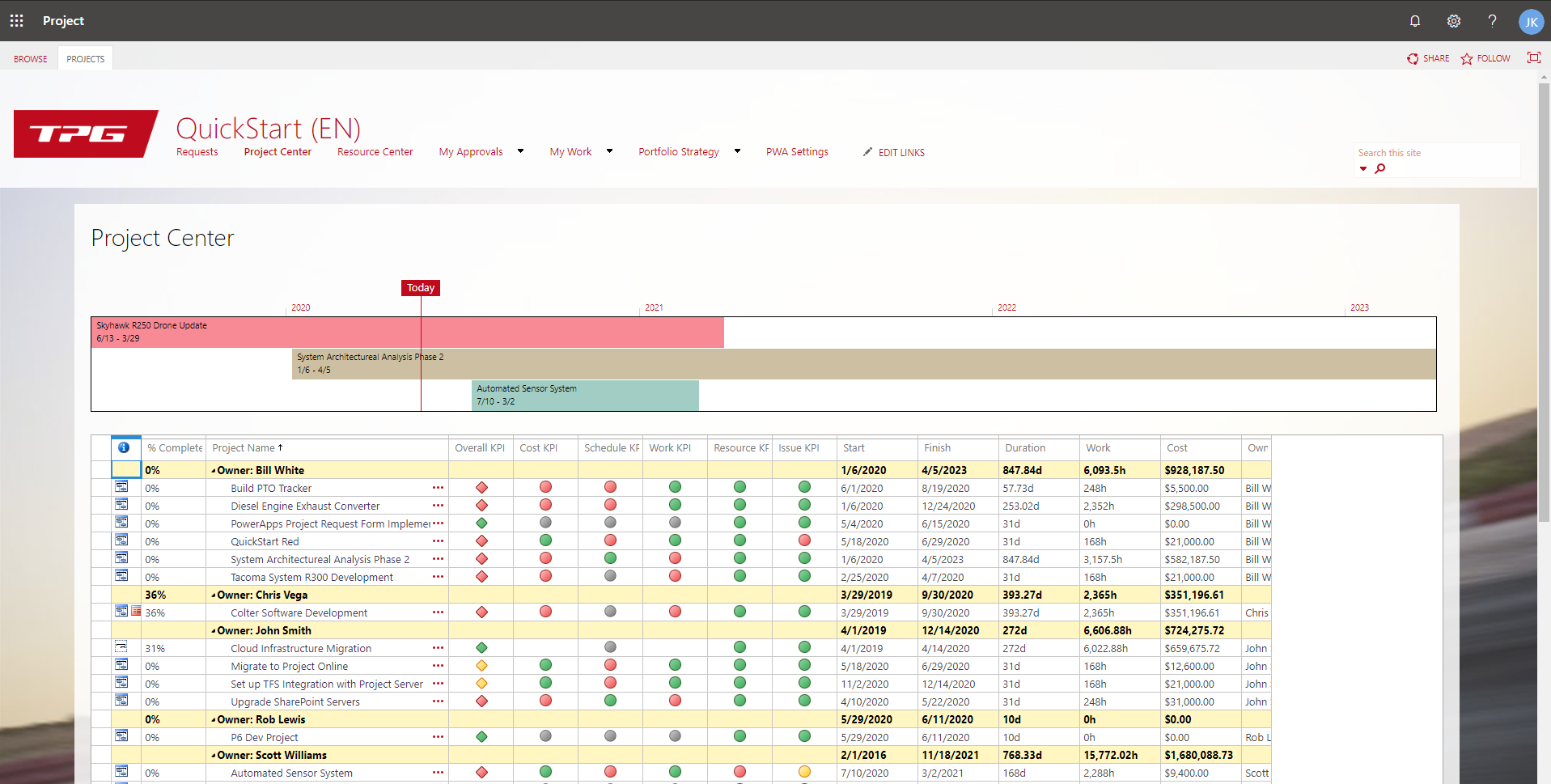
Microsoft Project Online is a cloud-based project and portfolio management service designed to help organisations plan work, manage resources and track progress. It brings project schedules, tasks, timesheets and reporting together in one environment, making it easier for teams and managers to see how work is progressing.
However, Microsoft has announced that Project Online will be retired on 30 September 2026. Organisations currently using the service should review their plans and prepare for a move to an alternative before that date.
What is Microsoft Project Online?
Project Online is part of Microsoft’s project management offering. It allows users to create and maintain project plans, assign tasks, monitor timelines and manage resources through a web browser. It can also work alongside Project desktop, which provides more advanced scheduling and planning tools.
The service is built on SharePoint Online and includes features for managing projects across an organisation, rather than simply organising an individual to-do list. Depending on how it is set up, teams can use it to manage timesheets, approvals, project sites and portfolio-level reports.
Key features
- Project planning: Create schedules, define tasks, set dependencies and track milestones.
- Resource management: View how people and other resources are assigned across projects.
- Timesheets: Record and submit time spent on work, where this capability is configured.
- Portfolio management: Compare projects, review demand and support decisions about priorities.
- Reporting: Bring project information together to monitor progress, costs and workload.
- Microsoft integration: Connect project work with tools such as SharePoint and other Microsoft 365 services.
Who uses Project Online?
Project Online has typically suited medium-sized and large organisations that need oversight of multiple projects. It can be useful for project management offices (PMOs), IT teams, consultancies and departments that need consistent planning, resource allocation and reporting.
It may be more than a small team needs if the main requirement is simply to assign tasks and keep track of deadlines. In that case, a lighter task-management tool may be easier to manage.
Project Online and Microsoft Planner
Project Online should not be confused with Project for the web, a separate Microsoft service that has been incorporated into the new Microsoft Planner experience. Planner is developing as Microsoft’s task and work management hub, while Project Online has been used for more structured project and portfolio management.
The right replacement depends on how an organisation uses Project Online. A team focused on tasks and straightforward plans may find Planner suitable. Organisations relying on complex schedules, resource management, timesheets, customised workflows or portfolio reporting will need to assess their requirements carefully before choosing a successor.
Planning for the retirement of Project Online
With Project Online scheduled to retire on 30 September 2026, organisations should begin preparing well in advance. A migration is not simply a matter of copying project plans: configurations, integrations, reports and working practices may also need to be reviewed.
- Review current usage: Identify active projects, users, custom fields, reports, workflows and integrations.
- Document essential requirements: Separate must-have capabilities from features that are no longer needed.
- Assess alternatives: Compare Microsoft Planner and other project management platforms against those requirements.
- Plan data and process changes: Decide what information must be retained, migrated or archived, and how teams will work in the new system.
- Test before switching: Pilot the chosen solution with representative projects and users, then provide training before a wider rollout.
Some organisations may need specialist support, particularly where Project Online has been heavily customised or connected to other business systems. It is also sensible to check Microsoft’s latest product and migration guidance, as transition options and licensing details can change.
Is Microsoft Project Online still worth using?
For organisations already using Project Online, it can remain part of day-to-day operations while a transition is planned. But with retirement announced, it is not a suitable platform for a new long-term deployment. Any new investment should take the service’s end date and the organisation’s future project management needs into account.
Conclusion
Microsoft Project Online has provided organisations with tools for scheduling projects, managing resources and overseeing portfolios. Its retirement on 30 September 2026 makes forward planning essential. By reviewing how the service is used and comparing alternatives early, organisations can choose a solution that fits their needs and give teams time to adapt.
Mastering Microsoft Project Online: 8 Essential Tips for Effective Project Management
- Set clear task dates, durations and dependencies.
- Save a baseline to track progress against your plan.
- Assign resources carefully to avoid over-allocation.
- Publish schedules so your team can see the latest changes.
- Use timesheets to record actual work consistently.
- Review the critical path to spot tasks that could delay delivery.
- Use reports and dashboards to share project status.
- Check permissions to ensure people can access the right information.
Set clear task dates, durations and dependencies.
Set clear task dates, durations and dependencies in Microsoft Project Online to create a realistic, easy-to-follow schedule. Give each task a defined start or finish point and an estimated duration, then link related tasks so that changes to one are reflected in the timing of others. This helps reveal the critical sequence of work, highlight potential delays and keep everyone clear about what needs to happen next.
Save a baseline to track progress against your plan.
Save a baseline in Microsoft Project Online once your project plan has been agreed. A baseline records a snapshot of key details, such as planned start and finish dates, task durations and costs. As work progresses, compare actual results with this snapshot to spot delays, changing costs or tasks that are drifting from the plan. Setting a baseline early—and updating it only when an approved change warrants it—gives you a reliable reference for tracking progress and discussing issues with stakeholders.
Assign resources carefully to avoid over-allocation.
Assign resources carefully in Microsoft Project Online to prevent people or equipment from being scheduled for more work than they can reasonably manage. Check each resource’s availability and existing assignments before adding tasks, and use resource views to spot periods of over-allocation. If conflicts appear, consider adjusting task dates, redistributing work or assigning additional resources. Regular reviews help keep schedules realistic and workloads balanced.
Publish schedules so your team can see the latest changes.
Publish your schedule regularly in Microsoft Project Online so your team can see the latest approved changes. Publishing makes updated tasks, dates and assignments available to team members, helping everyone work from the same plan and reducing confusion caused by out-of-date information. Before publishing, review your changes for accuracy, then let colleagues know when the schedule has been updated.
Use timesheets to record actual work consistently.
Use timesheets in Microsoft Project Online to record actual work consistently across your team. Encourage everyone to enter their hours regularly and use the same conventions for tasks and time periods. Accurate, up-to-date entries give project managers a clearer view of progress, help compare actual effort with the original plan and support better resource and workload decisions.
Review the critical path to spot tasks that could delay delivery.
Reviewing the critical path in Microsoft Project Online helps you identify the tasks that directly determine your project’s finish date. These activities have little or no scheduling flexibility, so a delay to one could push back delivery. Check the critical path regularly, pay particular attention to upcoming tasks and dependencies, and act early if work is at risk—for example, by resolving blockers or reallocating resources.
Use reports and dashboards to share project status.
Use reports and dashboards in Microsoft Project Online to give stakeholders a clear, up-to-date view of project status. Highlight key information such as milestones, progress, upcoming deadlines, resource use and potential risks, tailoring the detail to suit each audience. Regularly refreshed reports help teams spot issues early, make informed decisions and keep everyone aligned without relying on lengthy status updates.
Check permissions to ensure people can access the right information.
Check permissions regularly to ensure everyone can access the information they need in Microsoft Project Online—and only the information they are authorised to see. Review access at project, site and group level, especially when people join a team, change roles or leave a project. Clear, up-to-date permissions help protect sensitive data, prevent access issues and keep collaboration running smoothly.