
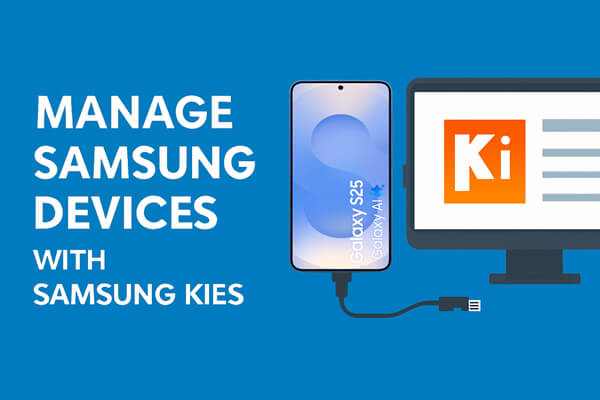
Mastering Device Management with Samsung Kies: Your Ultimate Companion
The Complete Guide to Samsung Kies: Your Ultimate Device Management Solution
Samsung Kies is a versatile software application designed to help Samsung device users manage and synchronise their smartphones, tablets, and other devices with their computers. Whether you need to transfer files, update software, or backup data, Samsung Kies offers a comprehensive suite of features to streamline your device management experience.
Key Features of Samsung Kies:
- Device Synchronization: Easily sync your Samsung device with your computer to ensure that your data is always up-to-date on both platforms.
- File Transfer: Seamlessly transfer photos, videos, music, contacts, and other files between your Samsung device and computer with just a few clicks.
- Firmware Updates: Stay current with the latest software updates for your device by using Samsung Kies to download and install firmware updates directly from Samsung.
- Data Backup and Restore: Safeguard your important data by creating backups on your computer and easily restore them whenever needed.
- Media Management: Organise and manage your media files efficiently through Samsung Kies, making it easy to access and enjoy your content across devices.
How to Use Samsung Kies:
To get started with Samsung Kies, simply download the application from the official Samsung website and install it on your computer. Once installed, connect your Samsung device via USB cable or wirelessly (depending on device compatibility) and follow the on-screen instructions to begin managing your device effortlessly.
Compatibility:
Samsung Kies is compatible with a wide range of Samsung smartphones, tablets, and other devices. However, it’s essential to check the specific requirements for your device model before downloading and using the application to ensure optimal performance.
In Conclusion:
Samsung Kies is a valuable tool for anyone who owns a Samsung device and wants to simplify the process of managing their data. With its user-friendly interface and robust features, Samsung Kies empowers users to stay organised, updated, and in control of their digital lives. Explore the possibilities that Samsung Kies offers today and experience a seamless integration between your Samsung devices and computer like never before!
Essential Tips for Optimising Your Samsung Kies Experience
- Ensure you have the latest version of Samsung Kies installed on your computer.
- Connect your Samsung device to your computer using a USB cable that is in good condition.
- Back up your important data before performing any updates or transfers using Samsung Kies.
- Make sure to check for software updates regularly to keep your Samsung device up-to-date.
- Use Samsung Kies to easily transfer music, photos, and videos between your computer and device.
- If you encounter any issues with Samsung Kies, try restarting both your device and computer before troubleshooting further.
- Explore additional features of Samsung Kies such as firmware upgrades and syncing contacts and calendars.
Ensure you have the latest version of Samsung Kies installed on your computer.
To make the most of Samsung Kies and its features, it is crucial to ensure that you have the latest version of the software installed on your computer. By keeping Samsung Kies up-to-date, you can benefit from improved performance, compatibility with new devices, and access to the latest features and enhancements. Regular updates also help ensure a seamless connection between your Samsung device and computer, enabling you to efficiently manage your data and stay current with firmware updates. Be sure to check for updates regularly to maximise the functionality and reliability of Samsung Kies for a smooth device management experience.
Connect your Samsung device to your computer using a USB cable that is in good condition.
For optimal performance when using Samsung Kies, ensure that you connect your Samsung device to your computer using a USB cable that is in good condition. A reliable USB cable is essential for establishing a stable connection between your device and computer, enabling seamless data transfer, synchronization, and other management tasks. By using a high-quality USB cable, you can avoid potential connectivity issues and experience a smooth and efficient interaction with Samsung Kies for managing your device effectively.
Back up your important data before performing any updates or transfers using Samsung Kies.
It is crucial to back up your important data before initiating any updates or transfers through Samsung Kies. By creating a backup of your valuable information, such as contacts, photos, and documents, you can safeguard against any potential data loss during the update or transfer process. Taking this precaution ensures that you can restore your data easily in case of any unforeseen issues, providing you with peace of mind and security for your digital assets.
Make sure to check for software updates regularly to keep your Samsung device up-to-date.
Ensuring your Samsung device remains up-to-date is crucial for optimal performance and security. By regularly checking for software updates using Samsung Kies, you can access the latest features, improvements, and bug fixes provided by Samsung. Keeping your device’s software current not only enhances its functionality but also helps protect it against potential vulnerabilities. Stay ahead by making it a habit to check for updates through Samsung Kies to enjoy a seamless and secure user experience on your Samsung device.
Use Samsung Kies to easily transfer music, photos, and videos between your computer and device.
Utilise the versatile capabilities of Samsung Kies to effortlessly transfer your favourite music, cherished photos, and captivating videos between your computer and Samsung device. With just a few simple steps, you can seamlessly sync your multimedia content, ensuring that you always have access to your treasured files across both platforms. Say goodbye to cumbersome file transfers and hello to a convenient and efficient way to manage your media with Samsung Kies.
If you encounter any issues with Samsung Kies, try restarting both your device and computer before troubleshooting further.
If you encounter any issues with Samsung Kies, a helpful tip is to restart both your device and computer before delving into troubleshooting further. This simple step can often resolve minor connectivity or software glitches, giving your devices a fresh start and potentially resolving the issue swiftly. By restarting both your device and computer, you can clear temporary issues that may be hindering the proper functioning of Samsung Kies, ensuring a smoother device management experience.
Explore additional features of Samsung Kies such as firmware upgrades and syncing contacts and calendars.
Discover the full potential of Samsung Kies by exploring its additional features, including firmware upgrades and the seamless syncing of contacts and calendars. With Samsung Kies, you can ensure that your device is always running on the latest software version through easy-to-access firmware upgrades. Moreover, streamline your digital life by effortlessly syncing your essential contacts and calendars between your Samsung device and computer, keeping you organised and up-to-date at all times. Embrace these advanced functionalities of Samsung Kies to enhance your device management experience like never before.