
MS Project Download: How to Get Microsoft Project Safely
MS Project Download: How to Get Microsoft Project Safely
Microsoft Project, often called MS Project, is a project management tool for planning schedules, assigning resources, tracking progress and managing project costs. If you are looking for an MS Project download, use Microsoft’s official website or your organisation’s Microsoft account to find the version and licence that suit you.
Choose the right version
Microsoft offers Project through different products and plans. Depending on the option you choose, you may get access to web-based project management features, a desktop application for Windows, or both. Some features and apps require a paid licence, and having Microsoft 365 does not necessarily include the Project desktop app.
- Web-based options: Work with projects in a browser, subject to the features included in your plan.
- Desktop options: Install a Windows application for more detailed scheduling and project-management features. Availability depends on the licence or edition.
- Work or school access: Your organisation may provide Project through a Microsoft work or education account. Ask your IT administrator which apps and features are included.
Microsoft’s product names and plans can change. Check the current plan details before purchasing, particularly if you need specific features such as desktop installation, collaboration tools or advanced resource management.
How to download Microsoft Project
- Visit the official Microsoft Project website and compare the available plans or editions.
- Choose the option that meets your needs and complete the purchase, or sign in with the account associated with your existing licence.
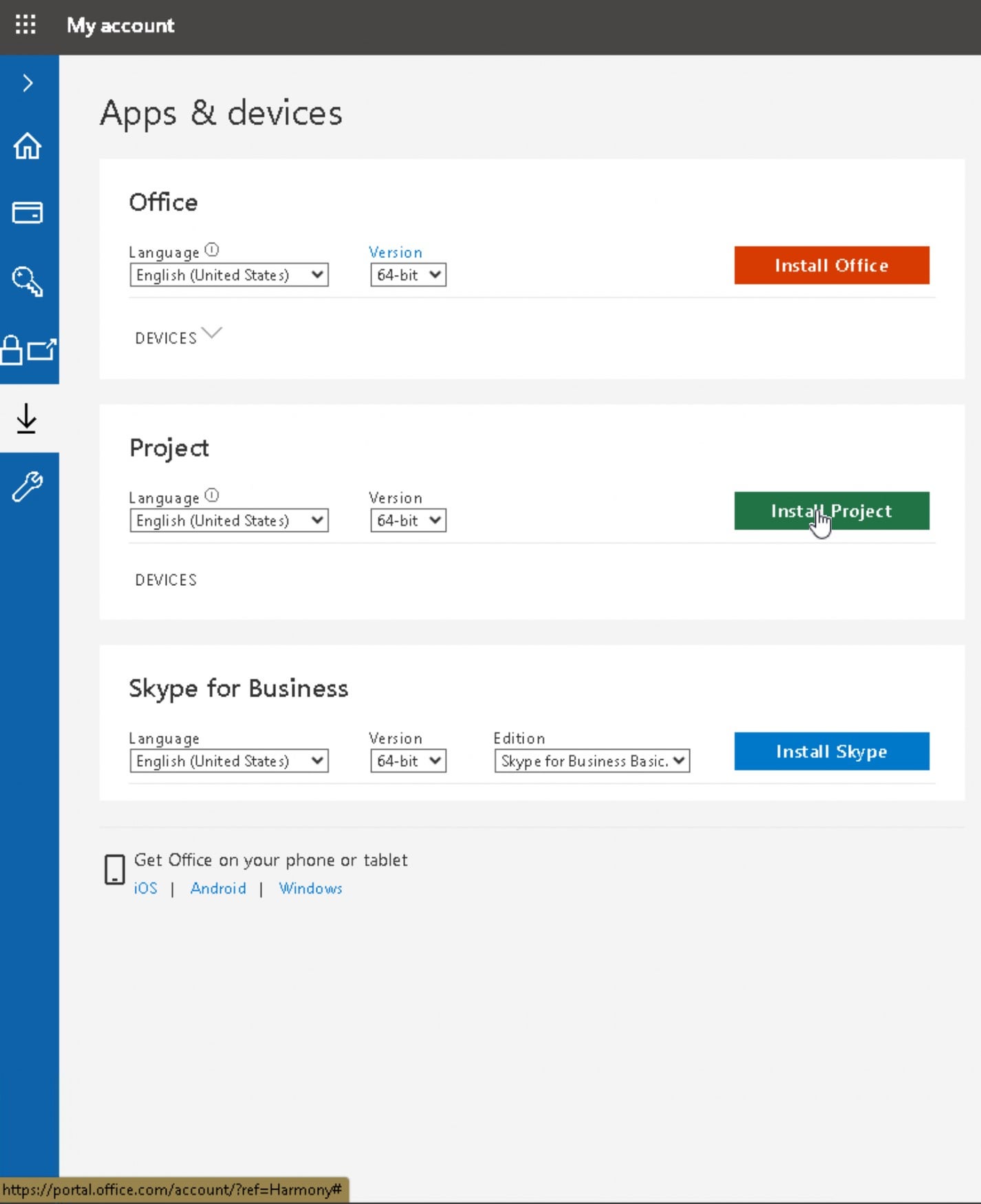
- Open your Microsoft account or organisation’s Microsoft 365 portal and look for the install option. The exact steps depend on your licence.
- Download and run the installer, then follow the on-screen instructions.
- Launch Project and sign in with the account linked to your licence if prompted.
If you already have a product key, redeem it through Microsoft’s official setup process. Keep the key private and avoid entering it on unfamiliar websites.
Check compatibility before installing
Before downloading, check Microsoft’s current system requirements for the specific Project edition. Desktop versions are generally designed for Windows, while browser-based tools can be accessed on supported devices through a web browser. Confirm that your operating system, available storage and account permissions meet the requirements.
Is there a free MS Project download?
Be cautious of websites offering a “free full version” of Microsoft Project. Unofficial installers may contain malware, may not work correctly or may breach Microsoft’s licensing terms. Microsoft may offer trials or other ways to try its products from time to time, but availability and conditions can vary. Check the official Microsoft website for current options.
If you only need basic task lists and team planning, Microsoft Planner or another project-management tool may be sufficient. Compare the features carefully: these tools are not necessarily a direct replacement for every capability in the Project desktop application.
Troubleshooting download and installation issues
- No install button: Check that you are signed in with the account that holds the Project licence. For a work or school account, contact your administrator.
- Installation fails: Review the system requirements, check your internet connection and make sure you have permission to install software on the device.
- Project will not activate: Confirm that the account you used to sign in has an active licence for the edition you installed.
- You are unsure which edition you have: Check your order confirmation or Microsoft account, or ask your organisation’s IT support team.
Download from a trusted source
The safest way to download MS Project is through Microsoft’s official website or the authorised Microsoft portal connected to your licence. Confirm the product edition and system requirements before installing, and avoid unofficial download sites that promise paid software for free.
6 Essential Tips for Downloading Microsoft Project Safely and Effectively
- Download Microsoft Project from the official Microsoft website.
- Check which Project plan or version suits your needs.
- Confirm your device meets the system requirements.
- Avoid unofficial download sites and cracked copies.
- Sign in with the Microsoft account linked to your licence.
- Follow Microsoft’s installer prompts to complete setup.
Download Microsoft Project from the official Microsoft website.
Download Microsoft Project from the official Microsoft website to make sure you get a genuine, up-to-date installer. This helps you avoid potentially unsafe files from third-party sites and ensures you can access the version and installation guidance associated with your licence. Before downloading, check that the edition meets your needs and is compatible with your device.
Check which Project plan or version suits your needs.
Before starting an MS Project download, check which plan or version best suits your needs. Consider whether you need a desktop application or browser-based tools, which project-management features are essential, and whether the software must work with your organisation’s Microsoft account. Compare the current plans and system requirements on Microsoft’s official website so you choose the right option before purchasing or installing.
Confirm your device meets the system requirements.
Before starting your MS Project download, confirm that your device meets the system requirements for the version you plan to install. Check that your operating system is supported and that you have enough storage, memory and the necessary permissions to install the software. Requirements can vary between editions, so consult Microsoft’s official guidance to help avoid installation problems.
Avoid unofficial download sites and cracked copies.
When downloading MS Project, use Microsoft’s official website or an authorised account portal. Avoid unofficial download sites and cracked copies: they may contain malware, put your files and personal information at risk, fail to work properly, or breach software licensing terms. A genuine download also makes it easier to receive updates and get support.
Sign in with the Microsoft account linked to your licence.
When downloading MS Project, sign in with the Microsoft account linked to your licence. This helps Microsoft confirm that you’re entitled to install the correct edition and can make it available in your account. If you’re using a work or school licence, sign in with your organisation’s account; if the download option isn’t available, contact your IT administrator.
Follow Microsoft’s installer prompts to complete setup.
Follow Microsoft’s installer prompts to complete the MS Project setup. Read each screen carefully, accept the required terms and choose any installation options offered. Once installation is complete, open Project and sign in with the Microsoft account linked to your licence, if prompted.