
Mastering Project Efficiency with Office 365 Planner: A Comprehensive Guide
Exploring the Benefits of Office 365 Planner
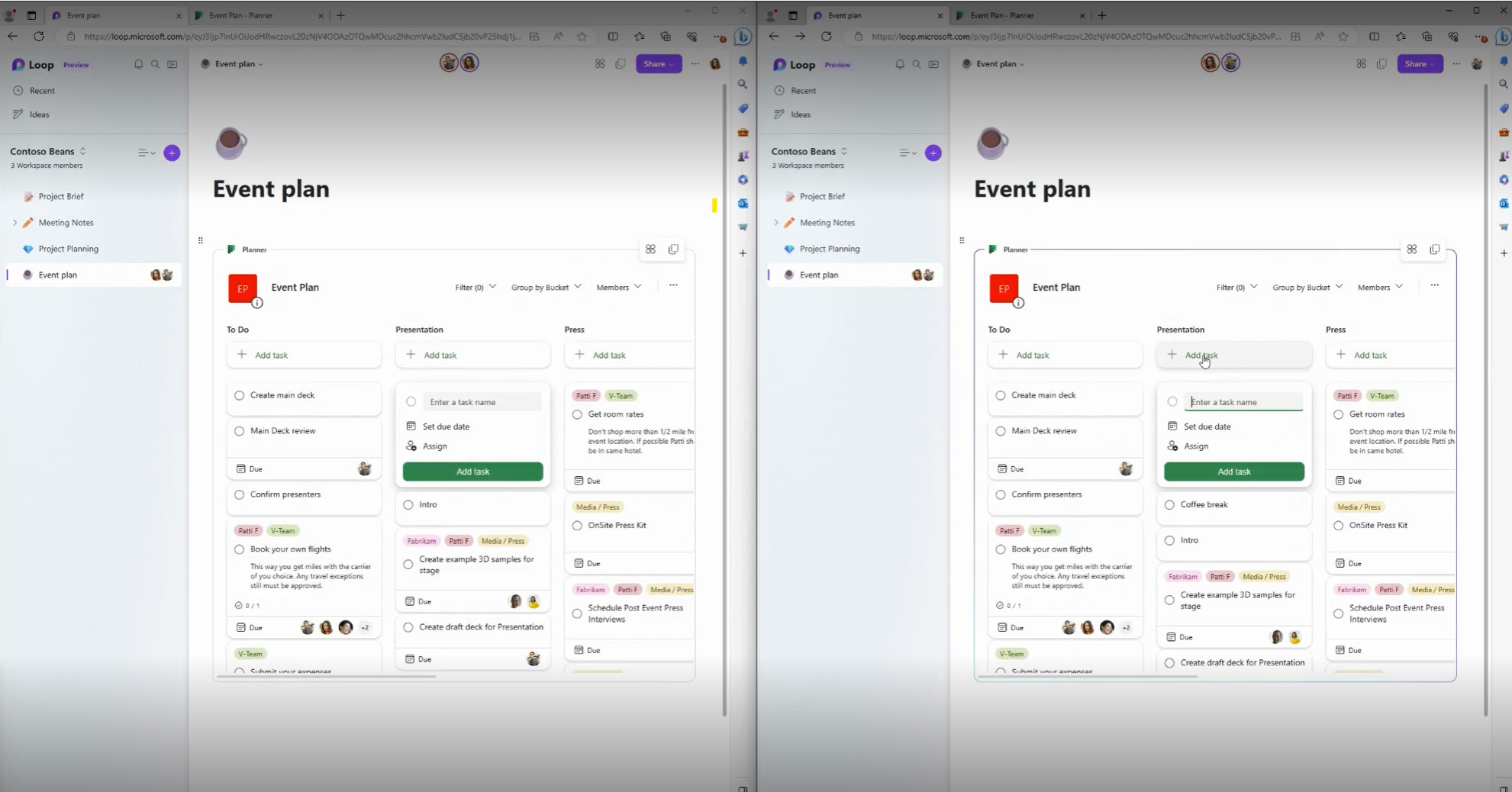
Office 365 Planner is a powerful tool that enhances productivity and collaboration within teams. This innovative application, integrated into the Office 365 suite, offers a comprehensive solution for task management and project planning.
One of the key advantages of Office 365 Planner is its user-friendly interface, which allows team members to create, assign, and track tasks effortlessly. With its intuitive design, users can visualise project progress through interactive charts and boards, making it easier to stay organised and focused on priorities.
Collaboration is at the core of Office 365 Planner, enabling team members to work together seamlessly regardless of their physical location. By sharing files, comments, and updates in real-time, teams can enhance communication and streamline workflow processes.
Another notable feature of Office 365 Planner is its integration with other Office 365 applications such as Outlook, Teams, and SharePoint. This connectivity ensures a cohesive user experience across different platforms and maximises efficiency by centralising project-related information.
Furthermore, Office 365 Planner offers customisable options for task categorisation, deadlines, and status updates. This flexibility allows teams to adapt the tool to their specific needs and workflows, fostering a more tailored approach to project management.
In conclusion, Office 365 Planner is a valuable asset for modern businesses seeking to boost productivity and collaboration among team members. Its intuitive interface, seamless integration with other Office 365 applications, and customisable features make it an essential tool for efficient task management and project planning.
9 Essential Tips for Mastering Office 365 Planner: Boost Your Productivity and Organisation
- Use categories to group and organise tasks effectively.
- Set due dates for tasks to stay on track with deadlines.
- Utilise labels to easily identify different types of tasks.
- Collaborate with colleagues by sharing task details and progress updates.
- Create checklists within tasks for better task management.
- Use the ‘My Tasks’ view to see all your assigned tasks in one place.
- Utilise the ‘Charts’ feature to visualise project progress and status.
- Set reminders for important tasks to ensure they are not forgotten.
- Integrate Planner with other Office 365 apps for seamless workflow.
Use categories to group and organise tasks effectively.
Utilising categories in Office 365 Planner is a strategic approach to efficiently group and organise tasks based on specific criteria or themes. By assigning tasks to relevant categories, teams can streamline workflow processes, enhance task visibility, and prioritise activities effectively. This feature not only promotes better organisation within projects but also facilitates easier tracking and monitoring of progress. Leveraging categories in Office 365 Planner empowers teams to manage their workload more effectively and ensures that each task is aligned with the overall objectives of the project.
Set due dates for tasks to stay on track with deadlines.
Setting due dates for tasks in Office 365 Planner is a crucial tip to ensure that teams stay on track with deadlines. By assigning specific deadlines to each task, team members can prioritise their work effectively and maintain a clear focus on meeting project milestones. This proactive approach not only helps in managing time efficiently but also enhances accountability and visibility within the team, ultimately leading to improved productivity and successful project outcomes.
Utilise labels to easily identify different types of tasks.
Utilising labels in Office 365 Planner is a smart tip to streamline task management. By assigning specific labels to different types of tasks, teams can easily identify and categorise them at a glance. This simple yet effective strategy enhances organisation and prioritisation, allowing team members to focus on the most critical tasks efficiently. With the ability to customise labels according to project requirements, Office 365 Planner empowers teams to create a clear visual representation of their workload, ultimately leading to improved productivity and collaboration.
Collaborate with colleagues by sharing task details and progress updates.
Collaboration is key in maximising the potential of Office 365 Planner. By sharing task details and progress updates with colleagues, teams can enhance communication, foster transparency, and ensure everyone is aligned towards common goals. This collaborative approach not only promotes teamwork but also allows for real-time feedback and adjustments, ultimately leading to more efficient project management and successful outcomes.
Create checklists within tasks for better task management.
Creating checklists within tasks in Office 365 Planner is a valuable tip for enhancing task management efficiency. By breaking down tasks into smaller, actionable items, teams can track progress more effectively and ensure that all necessary steps are completed. Checklists provide a clear roadmap for task execution, helping team members stay organised and focused on key deliverables. This approach not only improves productivity but also promotes collaboration as team members can easily see what needs to be done and contribute towards achieving shared goals.
Use the ‘My Tasks’ view to see all your assigned tasks in one place.
Utilising the ‘My Tasks’ view in Office 365 Planner is a strategic tip that enhances productivity by consolidating all assigned tasks into a single, easily accessible location. This feature provides users with a comprehensive overview of their responsibilities, allowing them to prioritise efficiently and stay organised. By centralising assigned tasks in one place, the ‘My Tasks’ view simplifies task management and enables users to focus on completing their work effectively.
Utilise the ‘Charts’ feature to visualise project progress and status.
By utilising the ‘Charts’ feature in Office 365 Planner, teams can gain valuable insights into project progress and status at a glance. This visual representation allows team members to track tasks, deadlines, and milestones more effectively, enhancing overall project management. The interactive charts provide a clear overview of the project’s status, enabling teams to identify potential bottlenecks or areas that require attention. Incorporating the ‘Charts’ feature into daily workflows can streamline communication and decision-making processes, ultimately leading to improved productivity and project outcomes.
Set reminders for important tasks to ensure they are not forgotten.
Setting reminders for important tasks in Office 365 Planner is a crucial tip to help individuals and teams stay on track and ensure that key responsibilities are not overlooked. By scheduling timely reminders, users can proactively manage their workload, meet deadlines, and maintain productivity. This simple yet effective feature enhances task prioritisation and accountability, ultimately leading to smoother project execution and successful outcomes.
Integrate Planner with other Office 365 apps for seamless workflow.
Integrating Office 365 Planner with other Office 365 applications is a smart tip that can significantly enhance workflow efficiency. By seamlessly connecting Planner with tools like Outlook, Teams, and SharePoint, teams can centralise project information, streamline communication, and ensure a cohesive user experience. This integration enables users to access all relevant data from one platform, eliminating the need to switch between multiple applications and allowing for a more seamless and productive workflow.