
HyperTerminal: What It Is, How It Works and Modern Alternatives
HyperTerminal: What It Is and How to Use It
HyperTerminal is a communications programme that was once included with Microsoft Windows. It was designed to connect a computer to other devices and services using a modem, a serial cable or a network connection. Although it is no longer supplied with modern versions of Windows, the name remains familiar to people working with older equipment and communications systems.
What is HyperTerminal?
HyperTerminal is a terminal emulator. It presents a text-based window through which a user can send and receive data. Depending on the connection, it can communicate with equipment such as modems, routers, switches and other devices with a serial interface. It can also connect to remote computers using protocols such as Telnet.
A terminal emulator is different from the Windows Command Prompt. The Command Prompt runs commands on the local computer, while HyperTerminal acts as a communications interface to another device or service.
A brief history
HyperTerminal was included with several versions of Windows, including Windows 95, Windows 98, Windows 2000 and Windows XP. It was removed as a standard component from Windows Vista and later releases. As a result, people using Windows 10 or Windows 11 generally need another terminal programme or a separately licensed version of HyperTerminal.
Common uses
HyperTerminal was often used to:
- Test and configure modems
- Connect to equipment through a serial port
- Access and configure network devices
- Send and receive text over a direct connection
- Diagnose communications problems
For example, an administrator might connect a computer to a router’s console port with a serial cable and use a terminal programme to enter configuration commands. This kind of direct access can be useful when the device is not yet configured for network access.
How a connection is set up
The connection process depends on the device and the connection method. For a serial connection, the user typically selects the correct COM port and sets communication parameters such as baud rate, data bits, parity, stop bits and flow control. These settings must match the connected equipment. Incorrect settings can result in unreadable text or no response.
For a network connection, the user enters the destination address and chooses a supported connection method. The exact options available depend on the version of the software.
Security considerations
Some older connection methods are not suitable for use over an untrusted network. Telnet, for instance, sends data—including login details—in plain text. This means it can potentially be intercepted. Where possible, use a secure alternative such as SSH, provided the remote device supports it. Serial connections are different: they use a physical link, but access to the connected equipment should still be controlled.
Alternatives for modern Windows
Users on current versions of Windows can choose from several terminal programmes, depending on their needs. PuTTY is a popular option for SSH, Telnet and serial connections. Tera Term also supports serial communication and common network protocols. Windows Terminal is a modern interface for command-line applications, but it is not, by itself, a direct replacement for every HyperTerminal function—particularly serial-device access.
Before choosing an alternative, check that it supports the connection type and settings required by the equipment. For older or specialist hardware, consult the manufacturer’s documentation as well.
Is HyperTerminal still useful?
HyperTerminal is largely a legacy programme, but the tasks it supported have not disappeared. Serial consoles and text-based device management are still used in IT, electronics and industrial settings. Today, those jobs are usually handled by newer terminal software that supports current operating systems and security practices.
Understanding HyperTerminal remains useful when maintaining older computers or equipment. For everyday use, however, a supported modern alternative is generally the better choice.
6 Essential Tips for Using HyperTerminal Effectively
- Choose the correct COM port before connecting.
- Match the baud rate and data settings to your device.
- Set flow control as required by the connection.
- Use the local echo option only if needed.
- Save session logs to review data later.
- Check your cable and port settings if no data appears.
Choose the correct COM port before connecting.
Before connecting in HyperTerminal, make sure you select the COM port that your device is actually using. Choosing the wrong port can leave the connection unresponsive or display no data, even when the cable is connected properly. Check the device settings in Windows Device Manager, or consult the equipment’s manual, to identify the correct port, then select it in HyperTerminal before setting the communication options and connecting.
Match the baud rate and data settings to your device.
When connecting to a device in HyperTerminal, make sure the baud rate and other data settings—such as data bits, parity, stop bits and flow control—match the values specified in the device’s manual. If they do not match, the connection may fail or display garbled text.
Set flow control as required by the connection.
Set the flow control to match the device and connection you are using. Flow control regulates how data is sent between HyperTerminal and the connected equipment, helping prevent information from being lost when one side cannot keep up. Check the device’s documentation for the correct setting—commonly None, Hardware or XON/XOFF—and make sure the same option is configured at both ends.
Use the local echo option only if needed.
Use the local echo option only if needed. It displays the characters you type in the HyperTerminal window, which can help when the connected device does not send them back. If the device already echoes your input, enabling local echo may make each character appear twice. If you see duplicated text, turn local echo off.
Save session logs to review data later.
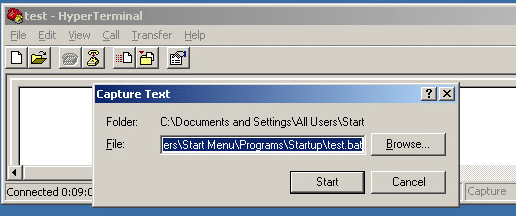
Save session logs when using HyperTerminal so you can review the data later, rather than relying on notes or memory. A log can help you trace commands and responses, compare results, and diagnose connection problems. Before recording, check that the log file is being saved in a suitable location and avoid capturing passwords or other sensitive information.
Check your cable and port settings if no data appears.
If no data appears in HyperTerminal, check that the cable is securely connected at both ends and that you have selected the correct COM port. Then confirm that the port settings—such as baud rate, data bits, parity, stop bits and flow control—match the connected device. Even a small mismatch can prevent communication or produce unreadable text.